
Invoices Processing
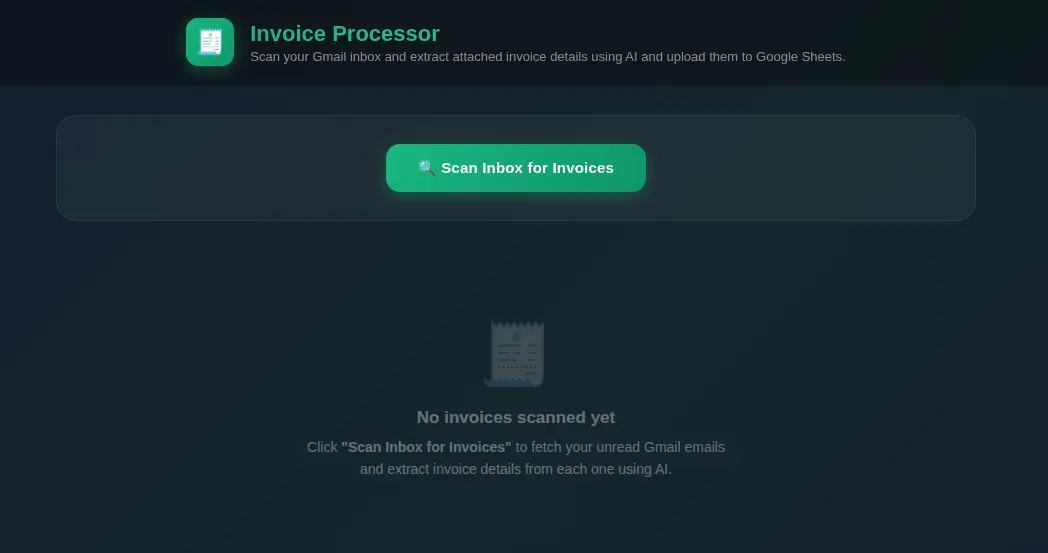
Click to zoom
Invoices Processing
Fetch emails from Gmail, extract PDF invoice data with AI, and automatically save structured results to a Google Sheet zero manual data entry.
Invoices Processing is a full-stack automation that reads your Gmail inbox over IMAP, uses OpenAI vision to parse invoice attachments, and appends the structured data to a Google Sheet for easy bookkeeping.
What it does
- Email fetching : Connects to Gmail via IMAP and retrieves unread messages with
fetch-emails - Invoice extraction : Loops over each email and its PDF attachments, sending them to OpenAI for structured data extraction via
extract-invoiceandextract-invoice-attachment - Google Sheets sync : Appends each extracted invoice as a new row to a designated spreadsheet tab via
save-invoice-to-sheets - Full pipeline : The
invoices-processinghabit orchestrates the entire fetch → extract → save flow in one run
Environment variables (.env / keyring on apps)
| Variable | Purpose |
|---|---|
HABITS_OPENAI_API_KEY | OpenAI API key for PDF invoice extraction |
HABITS_IMAP_HOST | IMAP server hostname (e.g. imap.gmail.com) |
HABITS_IMAP_PORT | IMAP port (typically 993 for SSL) |
HABITS_IMAP_USER | Gmail address used for IMAP login |
HABITS_IMAP_PASSWORD | Gmail App Password (16-character, no spaces) |
HABITS_GOOGLE_SHEETS_CLIENT_ID | Google OAuth 2.0 Client ID |
HABITS_GOOGLE_SHEETS_CLIENT_SECRET | Google OAuth 2.0 Client Secret |
HABITS_GOOGLE_SPREADSHEET_ID | Target Google Spreadsheet ID (from the sheet URL) |
How to set up
- Copy
.env.exampleto.envand fill in your credentials. - For Gmail, enable 2-Step Verification and generate a 16-character App Password for
HABITS_IMAP_PASSWORD. - Create a Google Cloud project, enable the Google Sheets API, configure the OAuth consent screen, and create OAuth 2.0 credentials with the correct redirect URI.
- Create (or reuse) a Google Sheet and name the target tab
Invoices; copy the Spreadsheet ID from the URL. - Run
invoices-processing: it will fetch emails, extract invoice data from PDF attachments, and populate your sheet automatically.
Tech stack
- habits framework for workflow orchestration
- OpenAI (
@ha-bits/bit-openai) for AI-powered PDF invoice data extraction - IMAP (
@ha-bits/bit-email) for Gmail inbox access - Google Sheets (
@ha-bits/bit-google-sheets) for structured data storage
Run Your .habit File
Run on Mobile
- [ ] Download the Cortex App from store or the downloads page
- [ ] Open the Cortex App on your device
- [ ] Tap "Open Habit" or "+" button
- [ ] Select your
.habitfile from your device storage - [ ] The habit will be loaded and ready to run
Run on Desktop
- [ ] Download the Cortex App for your platform from the downloads page
- [ ] Install and open the Cortex App
- [ ] Click "Open Habit" or drag & drop your
.habitfile - [ ] The habit will be loaded and ready to run
- [ ] Optional: Place a
.envfile in the same directory as your.habitfile to override environment variables
Run on Server
Run your .habit file as a server using the Cortex CLI:
bash
# Install and run in one command
npx @ha-bits/cortex --config ./your-app.habit- [ ] Make sure Node.js 20+ is installed
- [ ] Run the command above with your
.habitfile path - [ ] Server will start on the specified port (default: 3000)
- [ ] Access the app at
http://localhost:3000 - [ ] Optional: Place a
.envfile next to your.habitfile - it will automatically override any embedded environment variables
Run Serverless
For serverless or containerized deployments, we recommend using Docker:
bash
# Using Docker (recommended for serverless)
docker run -p 3000:3000 -v $(pwd)/your-app.habit:/app/habit.habit \
  node:20-alpine npx @ha-bits/cortex --config /app/habit.habit --host 0.0.0.0
Or create a Dockerfile:
dockerfile
FROM node:20-alpine
WORKDIR /app
COPY your-app.habit ./
COPY .env ./ # Optional: include environment variables
RUN npm install -g @ha-bits/cortex
EXPOSE 3000
CMD ["cortex", "--config", "./your-app.habit", "--host", "0.0.0.0"]- [ ] Create a Dockerfile or use the Docker run command above
- [ ] Deploy to your preferred cloud provider (AWS, GCP, Azure, etc.)
- [ ] Configure environment variables via your cloud provider's secrets management
- [ ] Set up health checks at
/habits/base/apiendpoint
Workflow Visualization
Requirements
- OPENAI_API_KEY (OpenAI API key)
- IMAP_HOST (IMAP server hostname)
- IMAP_PORT (IMAP port)
- IMAP_USER (IMAP login username / email address)
- IMAP_PASSWORD (IMAP password or Gmail App Password)
- GOOGLE_SHEETS_CLIENT_ID (Google OAuth 2.0 Client ID)
- GOOGLE_SHEETS_CLIENT_SECRET (Google OAuth 2.0 Client Secret)
- GOOGLE_SPREADSHEET_ID (Target Google Spreadsheet ID)
Quick Start
Run using the Habits CLI wrapper, recommended if you develop local Habits
# First, download the example files
npx habits@latest cortex --config ./invoices-processing/stack.yamlGet in touch
Want this habit running in your environment?
This habit is a starting point. Tell us about your stack and we'll help you get it working exactly the way your team needs.