
Company Automations Hub
Goal: Host multiple habits for your whole team under a single domain, with per-service subdomains, HTTPS, a visual admin panel, and no manual infrastructure work.
This recipe uses Habits Admin, an all-in-one Docker image that bundles a reverse proxy with auto-HTTPS, DNS management, process supervision, and a web-based admin UI. One docker compose up command gets you from zero to a running multi-tenant habits platform.
What you'll end up with
yourdomain.com              → Admin UI (manage everything from here)
marketing.yourdomain.com    → Cortex instance running your marketing-campaign habit
crm.yourdomain.com          → Cortex instance running your CRM workflow habit
onboarding.yourdomain.com   → Cortex instance running your customer onboarding habit
Each subdomain is fully isolated, HTTPS-secured, and can be started, stopped, or updated independently from the admin panel.
Tools used
| Tool | Role |
|---|---|
| Admin | Orchestrates all Cortex instances, manages DNS, issues TLS certs |
| Cortex Server | Runs each individual habit in isolation |
| Base | Optional, mount as a managed service for building new habits |
| Mirror | Optional, mount as a managed service for habit transfers |
Step 1, Pull and start the Docker image
Admin ships as a single Docker image. One compose file starts everything.
docker compose up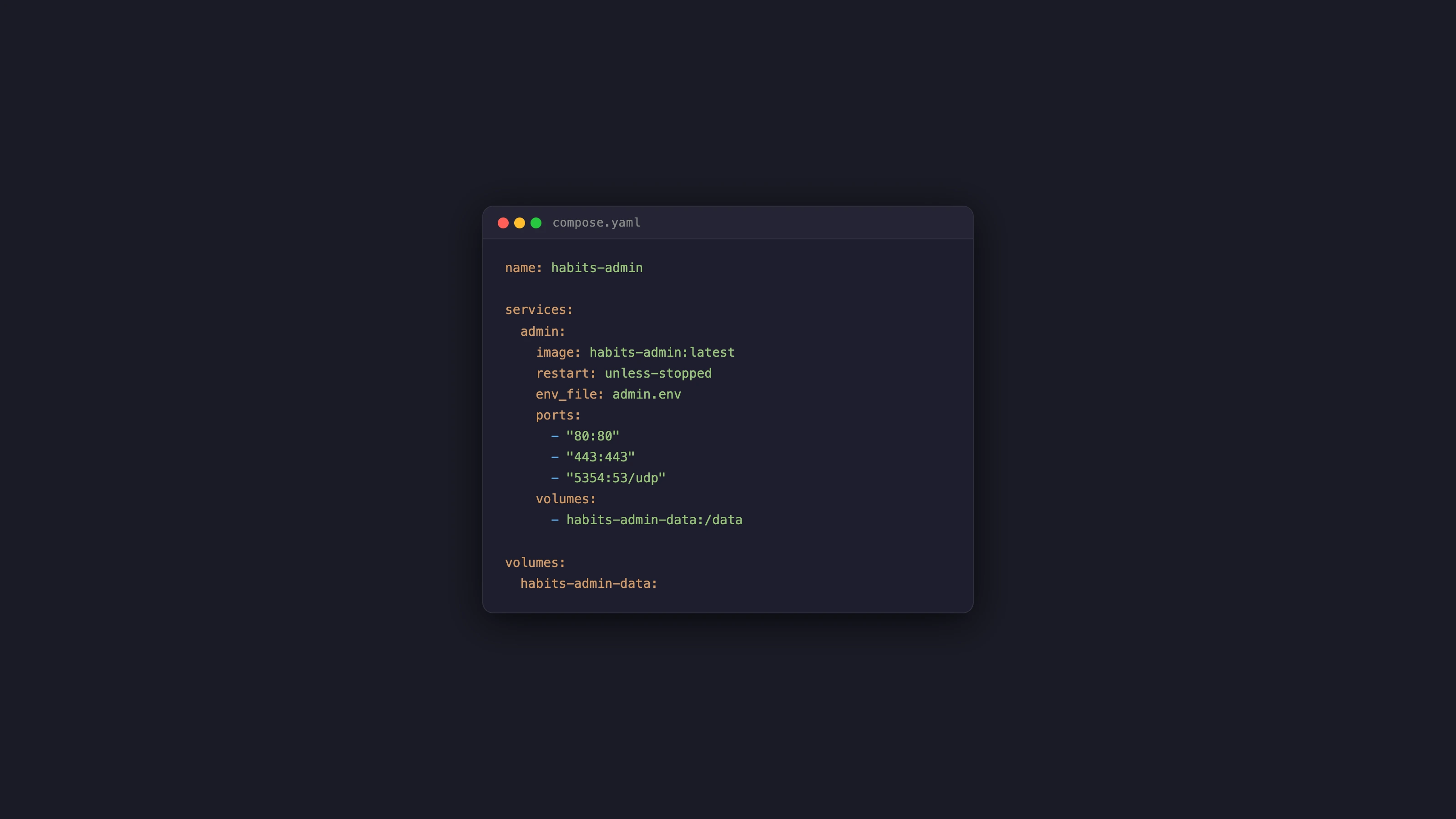
What happens when you run this:
- Reverse proxy starts and reads your domain from
ADMIN_DOMAINenv. It begins issuing Let's Encrypt certificates automatically for wildcard subdomains. - DNS server starts and accepts dynamic DNS record creation via the Admin API. No manual zone editing required.
- Process supervisor manages all internal services. If any crashes, it restarts automatically.
- Admin UI starts at
https://yourdomain.comand is immediately usable.
You'll need a wildcard DNS A record pointing
*.yourdomain.comto your server's IP before starting. The Admin panel handles all subdomain records from there.
Step 2, Assign a subdomain to a habit
Open the Admin UI. In the Services tab, click New Service.
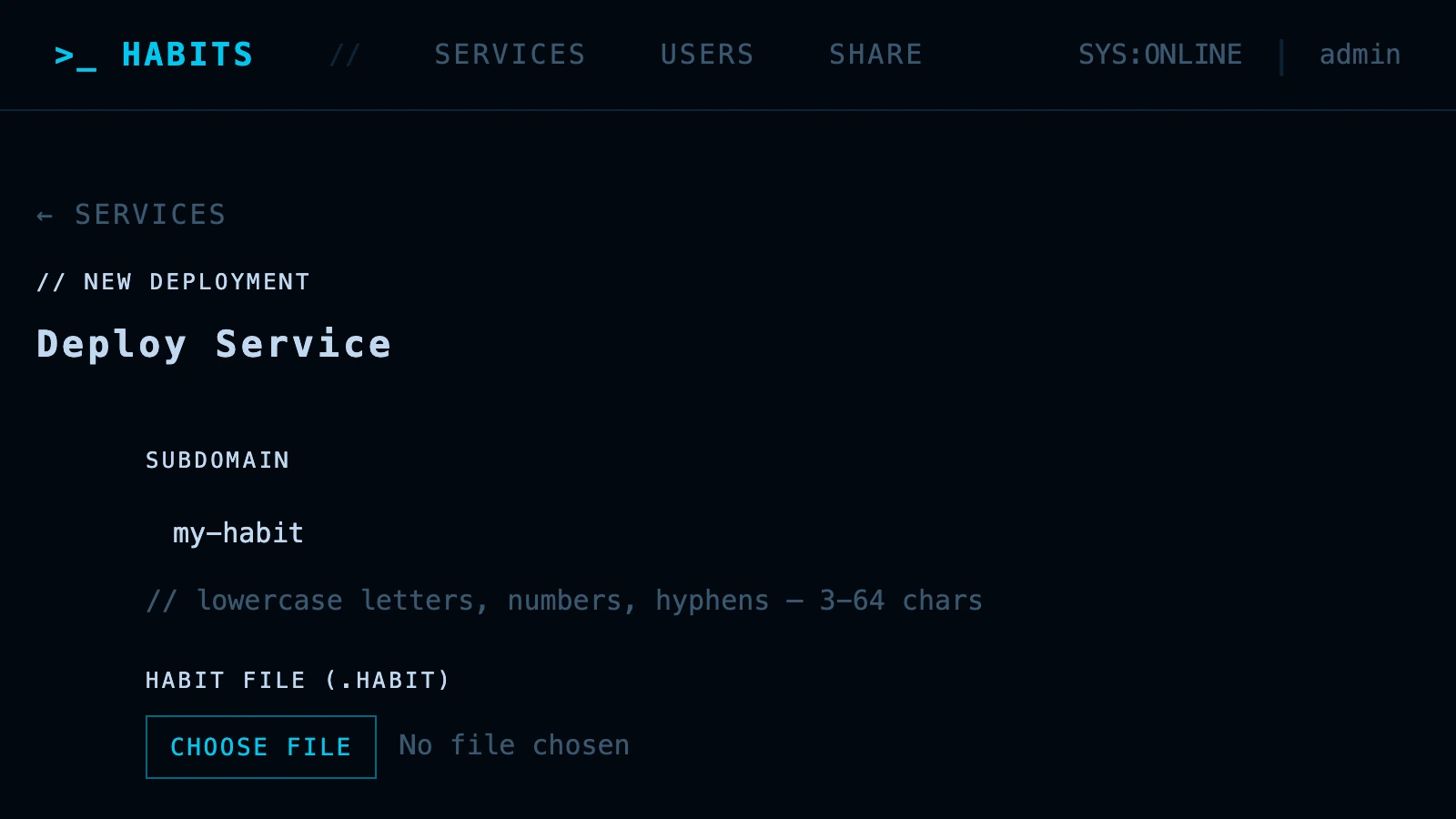
Enter a subdomain name (e.g. marketing) and choose which habit to deploy. The admin panel:
- Creates a DNS A record pointing
marketing.yourdomain.com→ server IP - Requests a TLS certificate for that subdomain
- Starts a new Cortex instance on an internal port
- Routes
marketing.yourdomain.com→ that Cortex instance
This takes about 5–10 seconds. No SSH, no manual cert commands.
Step 3, Upload or browse habits
In the Library tab you can install habits two ways:
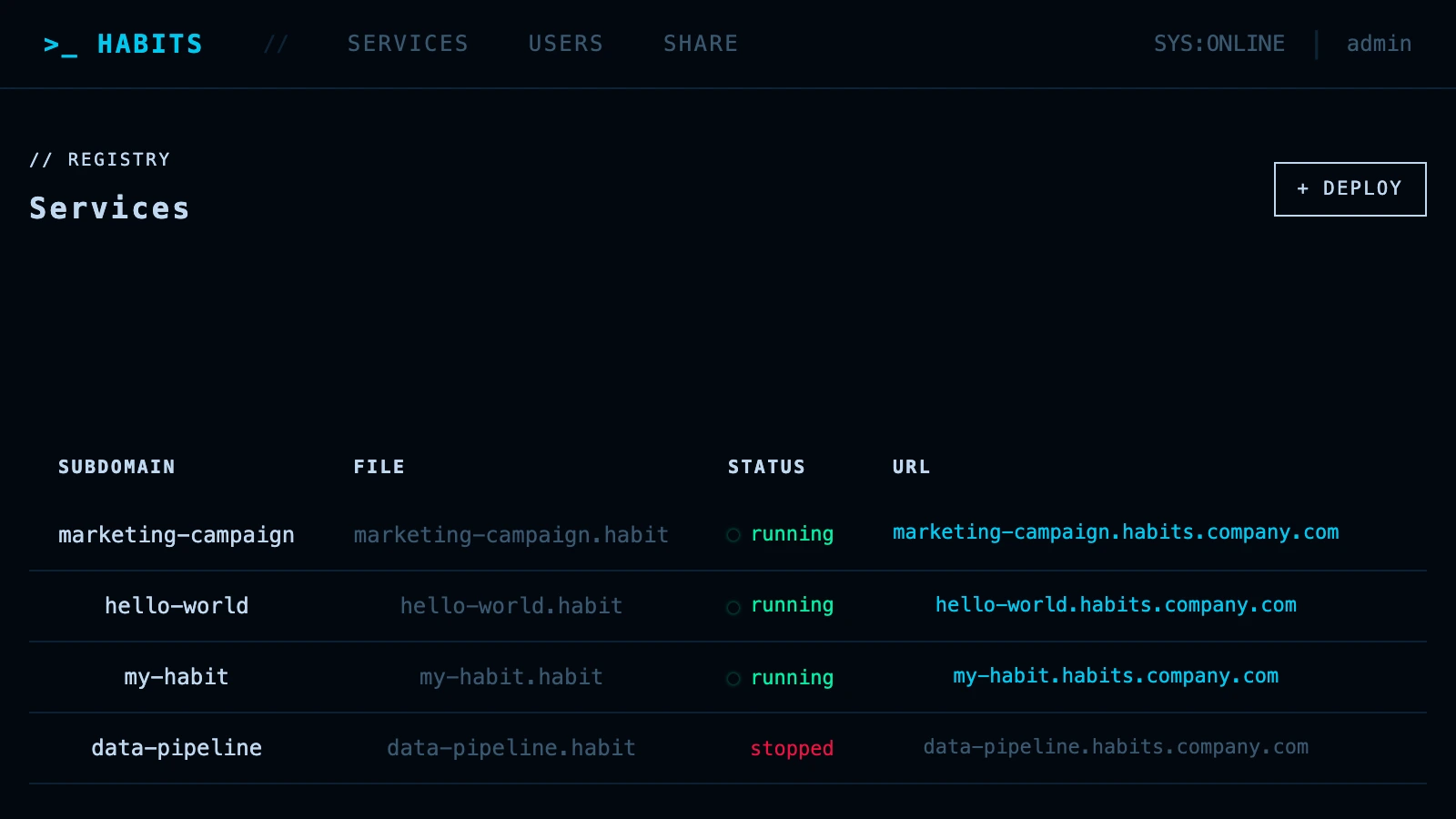
From the built-in showcase library: Browse habits that ship with the Admin image. Click Install and pick which service to deploy it to.
Upload your own .habit file: Drag any .habit binary file into the upload zone. The Admin validates the file, registers it in the library, and makes it available for deployment.
Once a habit is installed to a service, Admin starts the Cortex instance automatically.
Step 4, Your habit is live
Navigate to the subdomain you created. The habit is running, fully isolated, and HTTPS-secured.
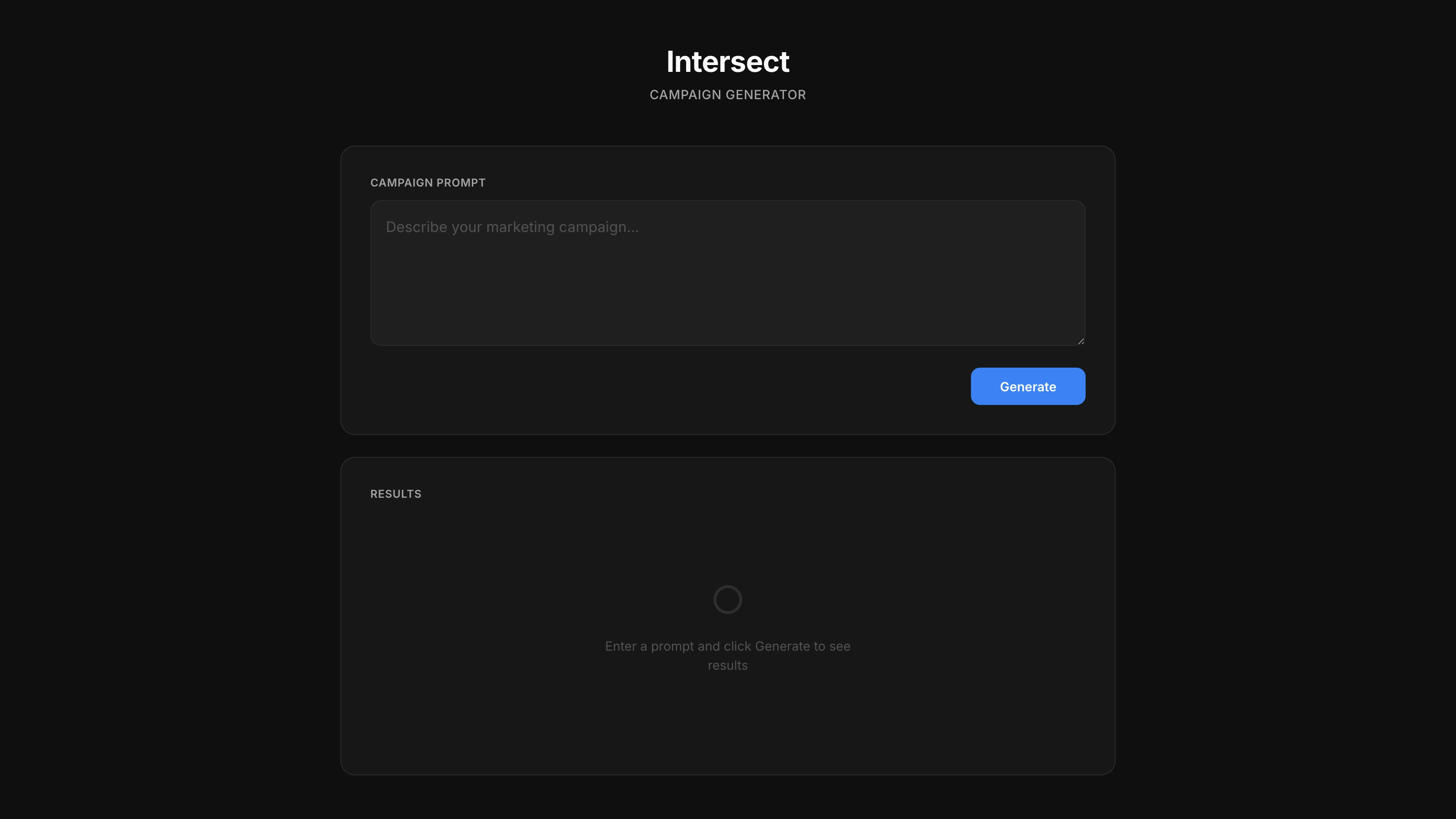
Repeat Steps 2–4 for every habit your team needs. Each gets its own subdomain and isolated process. You manage them all from the same admin panel.
Day-2 operations
Updating a habit
Upload a new .habit version in the Library tab. In the Services tab, click Update on the service. Admin performs a zero-downtime swap: starts the new version, waits for it to pass a health check, then stops the old one.
Scaling
Each Cortex instance runs on a single process. For high-traffic habits, you can run multiple Admin instances behind a load balancer, or horizontally scale individual subdomains by running multiple Cortex processes and adding round-robin DNS records.
User management
The Users tab lets you create accounts and assign roles. You can restrict who can access the Admin UI vs. who can only view the services list.
Monitoring
The admin panel shows real-time CPU, memory, and request metrics per service. For deeper observability, Cortex exposes Prometheus-compatible /metrics endpoints that you can scrape with Grafana.
Backup
Admin stores its state (DNS records, service configs, user accounts) in a local SQLite database at /data/admin.db. Mount /data as a Docker volume and snapshot it.
volumes:
  - ./data:/data
Environment variables
| Variable | Description | Example |
|---|---|---|
ADMIN_DOMAIN | Root domain for the admin UI and wildcard subdomains | yourdomain.com |
ADMIN_PASSWORD | Initial admin UI password | changeme |
ACME_EMAIL | Email for Let's Encrypt notifications | admin@yourdomain.com |
DNS_API_KEY | Internal DNS API key | secret |
Tips for getting the most out of Admin
Use the library as a habit registry. Upload every habit your team uses to the library, even if it's not deployed yet. The library acts as a central registry, you always know which version of a habit is available.
Assign subdomains that mirror your team names. marketing.yourdomain.com, sales.yourdomain.com, ops.yourdomain.com. This makes it obvious to end users which habit they're using without needing a docs page.
Enable Base as a managed service. If anyone on your team needs to edit or build habits, enable the Base managed service in Admin settings. It mounts the visual editor at base.yourdomain.com and connects directly to the library so builders can test and deploy without leaving the browser.
Set up Mirror for habit distribution. Enable the Mirror service in Admin settings. Your team can share new .habit files from Base directly to Admin over a peer-to-peer connection, without email or file sharing services. See the Mirror docs.