
Native Apps (Mobile & Desktop)
Goal: Run and manage habits from a native app, on your phone (iOS / Android) or your desktop (macOS, Windows, Linux), with full offline capability and no server required.
Both apps embed a full Cortex runtime. Your habits run directly on the device. The phone or the laptop is the server.
What you'll end up with
- A native app with a list of all your installed habits
- One-tap execution of any habit, with a live progress view
- Push notifications when a habit finishes or fails
- Full offline operation, habits run even without a network connection
- A built-in form UI for habits that take inputs
- (Desktop only) deep OS integration: keychain, notifications, WiFi, system settings
Tools used
| Tool | Role |
|---|---|
| Mobile App | Runs Cortex on-device on iOS and Android |
| Desktop App | Native Tauri app for macOS, Windows, and Linux |
| Cortex Server | The same runtime both apps embed |
| Mirror | Transfer habits from device to device over a local P2P connection |
Mobile App (iOS & Android)
Step 1, Download the mobile app
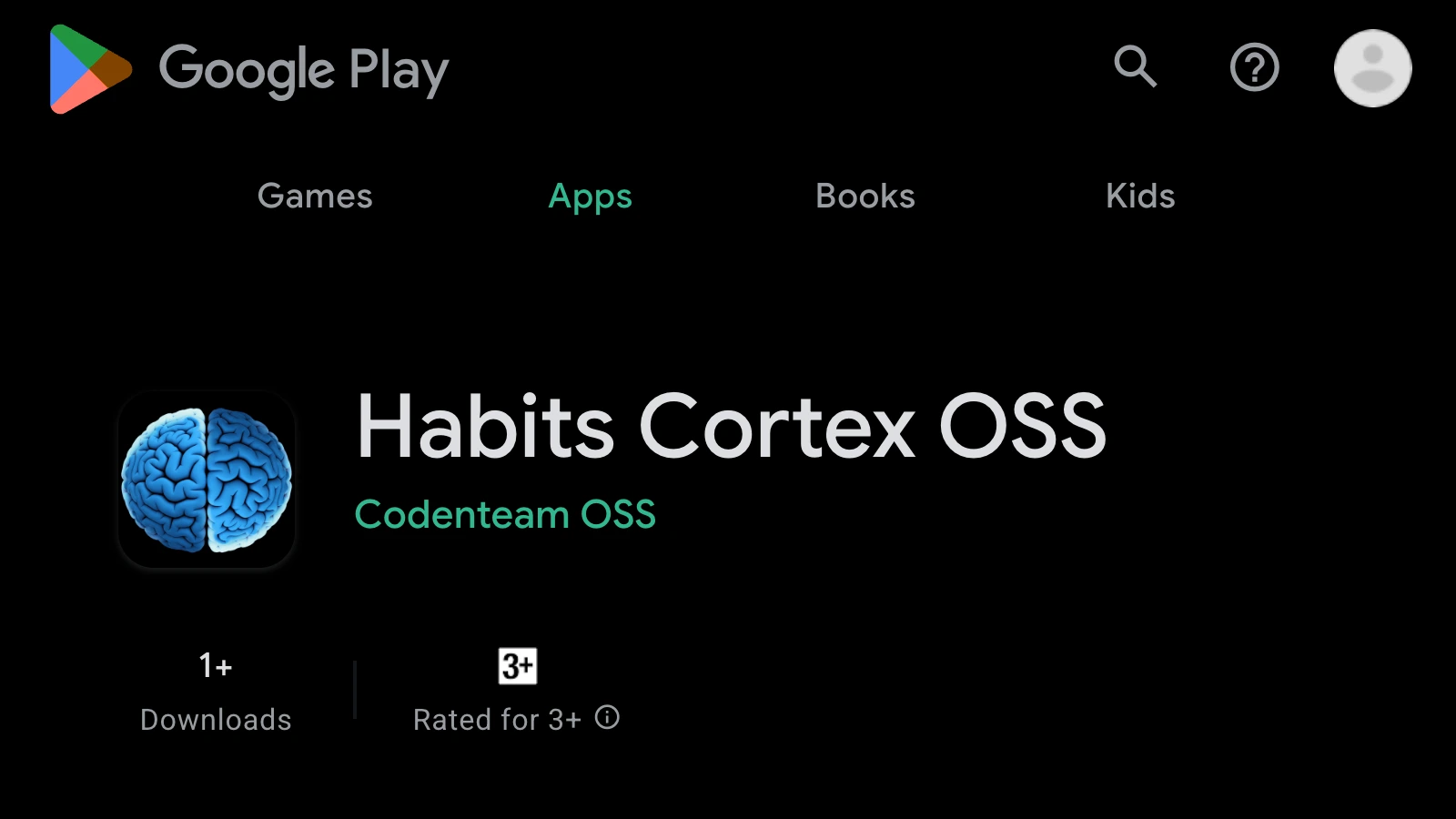
Install Habits from the App Store or Google Play:
- iOS: Download on the App Store, requires iOS 16+
- Android: Get it on Google Play, requires Android 12+
After installing, open the app. You'll land on the home screen, an empty habit list on first launch.
Step 2, Add your first habit
There are three ways to add a habit:
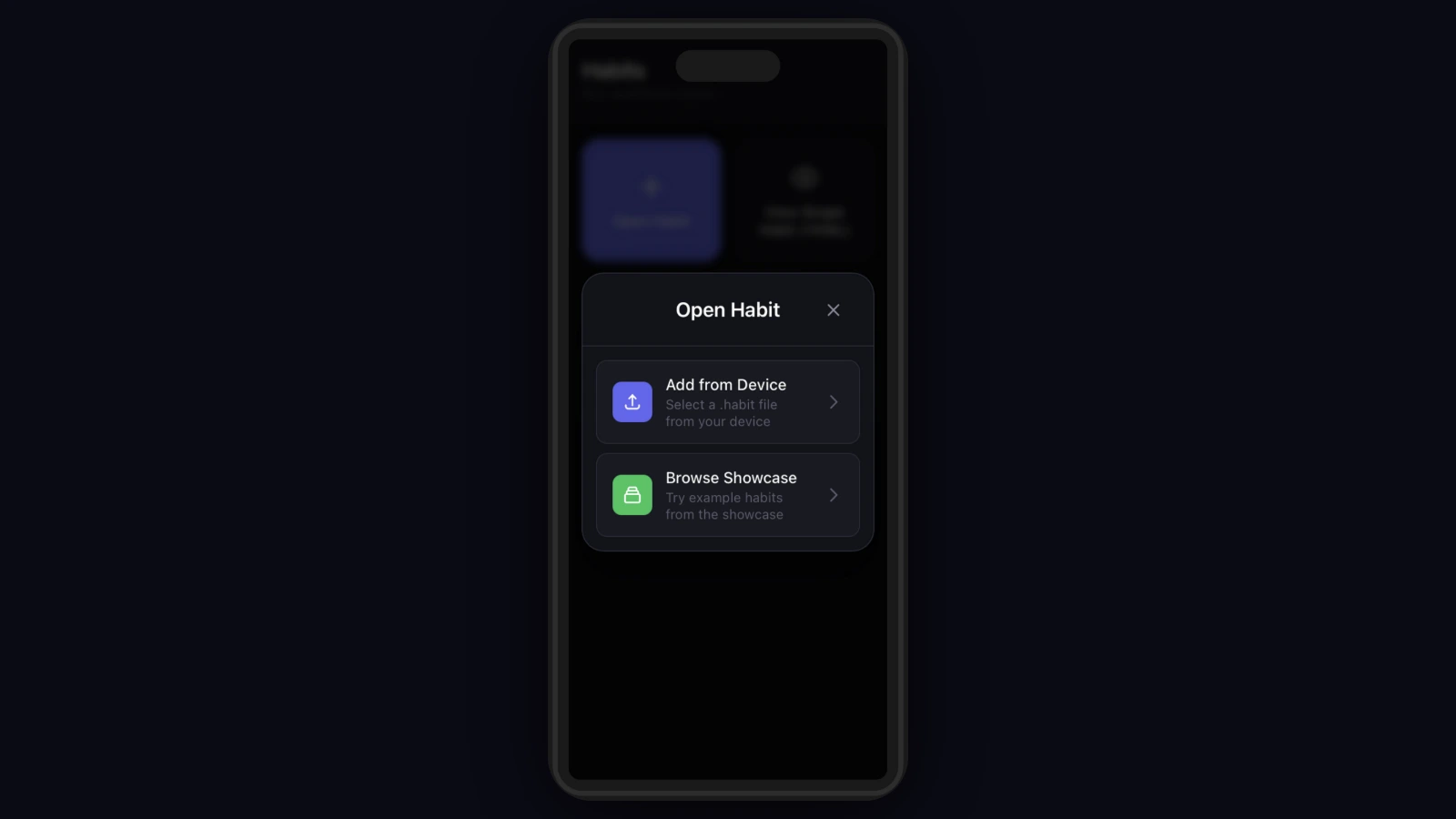
From the built-in library: tap Browse, pick any habit, tap Install.
Import a .habit file: tap Import and select the file. Habits validates it and adds it to your list.
Transfer from desktop via Mirror: on your desktop, open Base and use Pack → Share via Mirror. On your phone, tap Import → Mirror and enter the pairing code. The habit transfers over a local peer-to-peer connection. See Mirror.
Step 3, Run and trigger habits
The detail view gives you three trigger options:
- Run now: tap Run, fill inputs, tap Submit. The habit runs on-device with a live progress indicator.
- Schedule: set a cron expression or a simple interval (every hour, daily at 8am). The app registers a background task.
- Webhook: enable Webhook and the app generates a local URL (
http://phone-ip:3000/api/my-habit) other devices on the same network can call.
Step 4, Push notifications
When the app prompts for notification permission, tap Allow. Each habit can emit notifications via a notify node. Configure per-habit whether to notify on success, on failure, or both.
Tips for mobile
- Home screen shortcuts: long-press a habit → Add to Home Screen for one-tap execution.
- iOS Shortcuts / Tasker: call the webhook URL from automations that react to location, time, or system events.
- Keep habits focused: one habit = one purpose. Large chains drain battery and slow down the device.
- Offline design: use
@ha-bits/bit-local-aifor on-device AI instead of OpenAI when you need zero connectivity.
Mobile limitations
| Limitation | Details |
|---|---|
| No persistent HTTP server | Run on demand or on schedule. For always-on APIs, use Cortex Server on a machine. |
| iOS background restrictions | Scheduled habits may be delayed or skipped in low-power mode. |
| Large AI models | On-device LLM models are 200 MB–4 GB; first run is slow while the model downloads. |
Desktop App (macOS, Windows, Linux)
Step 1, Download and install
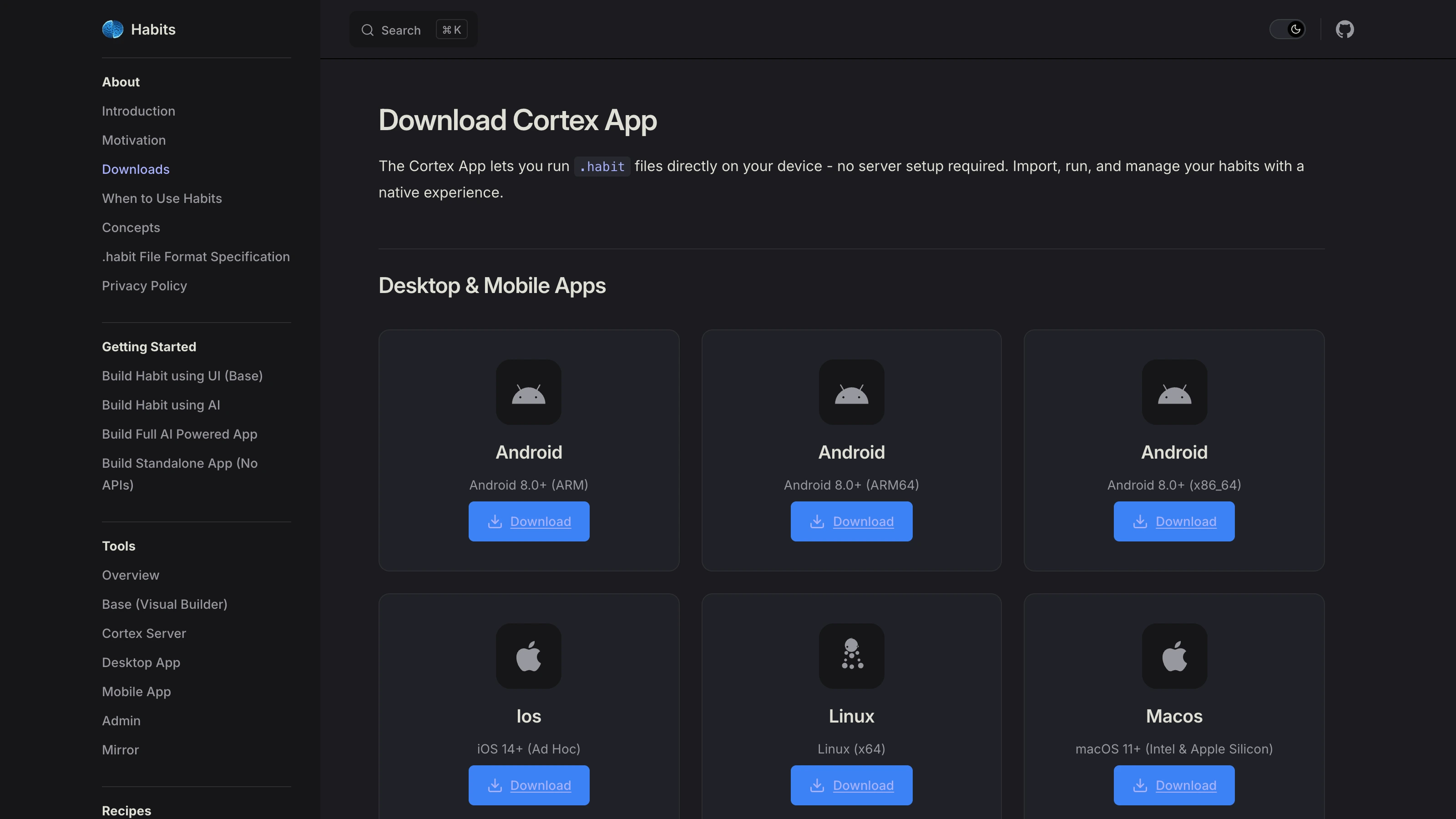
Download the installer for your operating system:
- macOS:
.dmguniversal binary (Apple Silicon + Intel). Right-click → Open on first launch to bypass quarantine. The app is notarized by Apple. - Windows:
.msiinstaller. - Linux:
.AppImage(no install required, just make it executable and run).
Step 2, Explore the native canvas
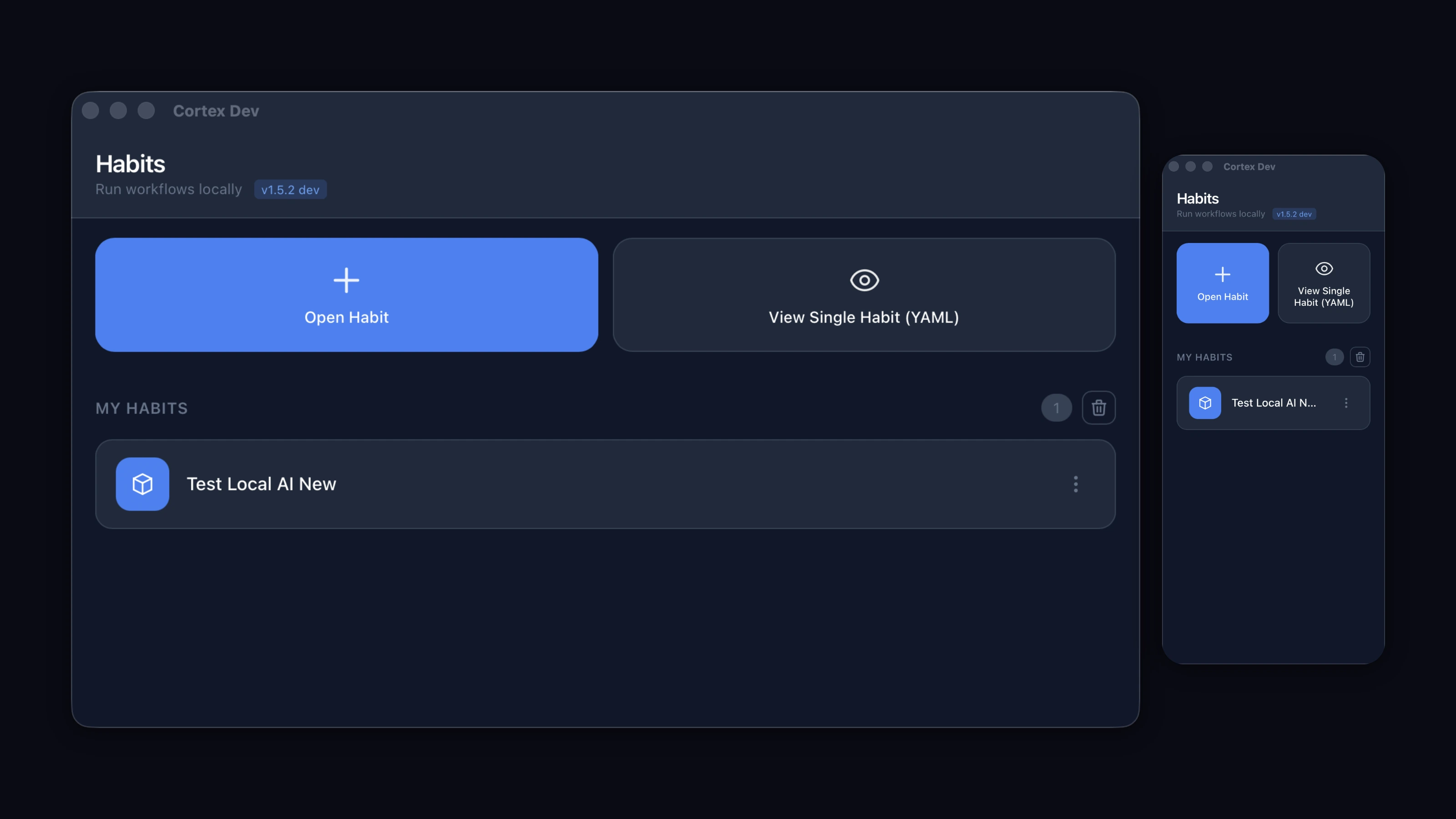
The app opens with two panels:
Left, Habit library: all installed habits with name, icon, and last-run status. Click + to install from the library or import a .habit file.
Right, Canvas or detail view: click a habit to see its workflow canvas. The embedded Base editor is fully functional. Run the habit with the Run button in the top bar.
No running server needed, the Cortex runtime, the Base editor, and habit storage are all embedded.
Step 3, Use OS integrations
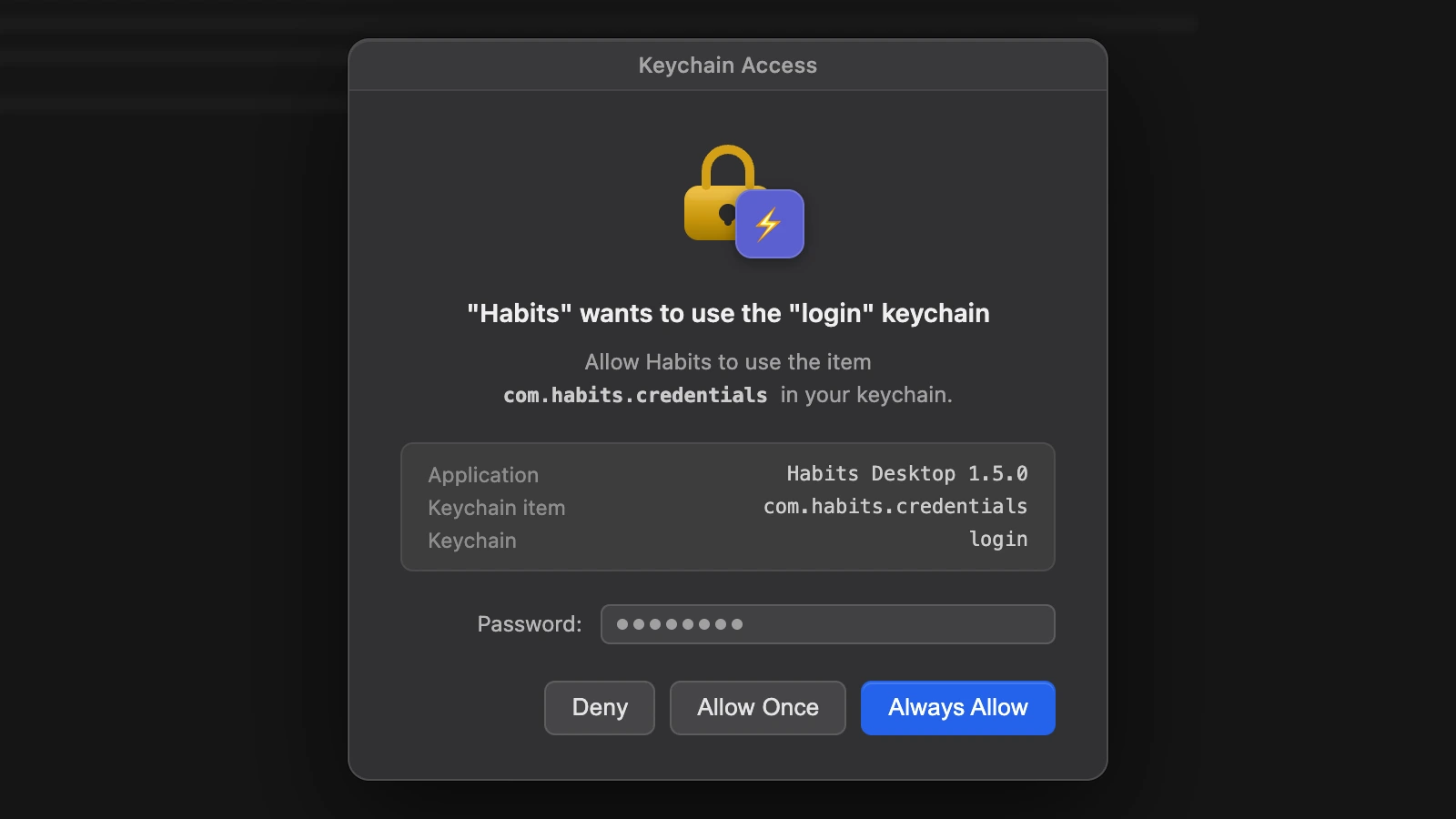
The desktop app exposes native OS capabilities unavailable in the browser:
Keychain: store and retrieve secrets in the system keychain (@ha-bits/bit-keyring). macOS uses Keychain Access, Windows uses Credential Manager, Linux uses libsecret.
System notifications: send native OS notifications from any habit via @ha-bits/bit-notify.
WiFi management: query connected networks, scan for available networks, connect or disconnect.
System settings: read OS version, hostname, username, and active user.
Step 4, Run habits fully offline
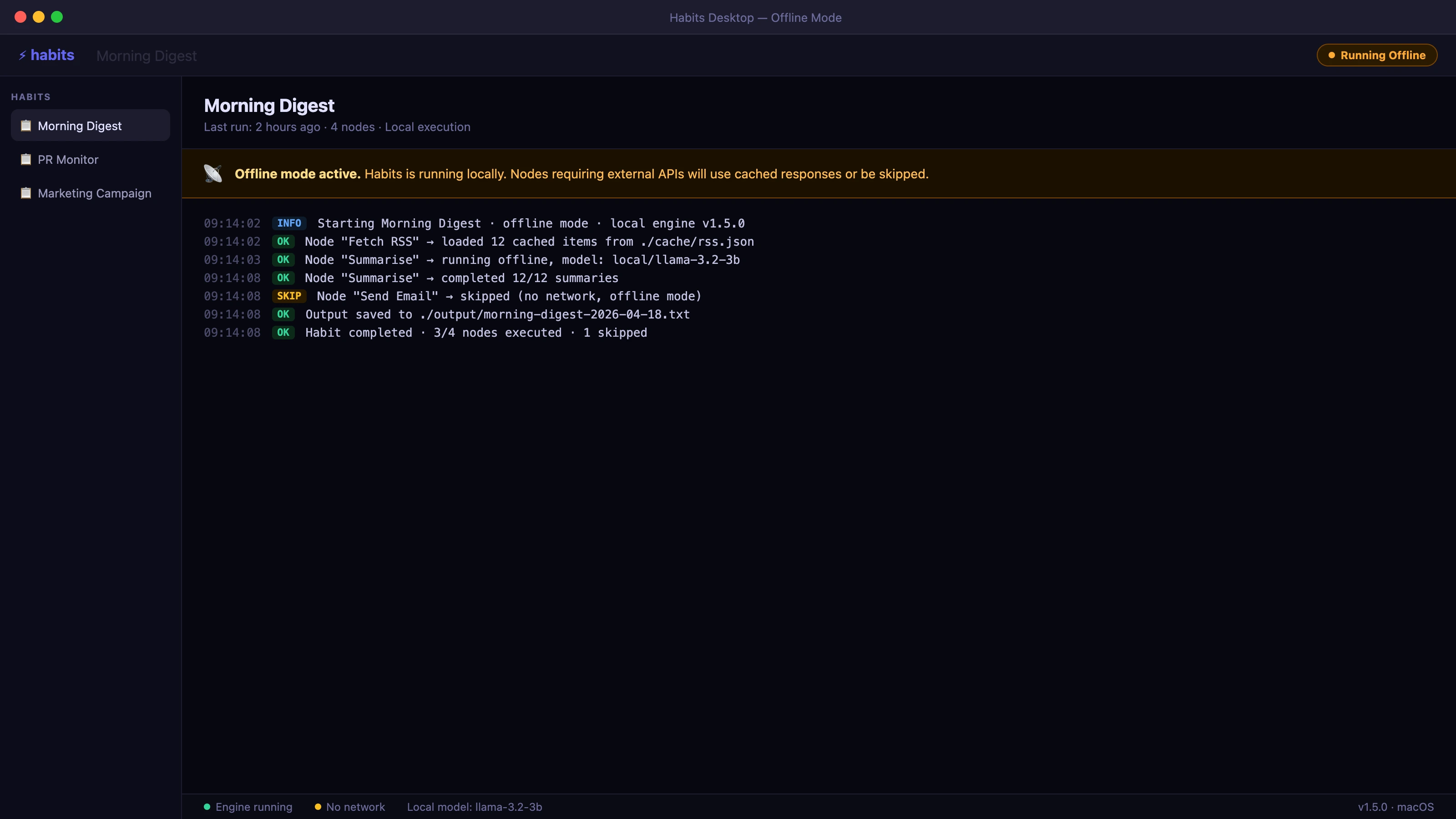
Any habit that doesn't call external APIs works completely offline:
- Use
@ha-bits/bit-local-aiinstead of@ha-bits/bit-openaifor AI operations - Use
@ha-bits/bit-databasewith a local SQLite path instead of a hosted database URL - File system, local HTTP, and LAN operations all work offline
Tips for desktop
- Store all API keys in the keychain once, then reference them by key name across all habits.
- Use scheduled habits as background services: they run even when the window is closed.
- Use Mirror to share habits between machines: generate a pairing code in the app and receive on another device.
- Edit workflows in the app: the embedded canvas is identical to Habits Base; no separate terminal process needed.
Platform-specific notes
| Platform | Notes |
|---|---|
| macOS | Full keychain, notifications, WiFi, and system settings. Universal binary (Apple Silicon + Intel). |
| Windows | Credential Manager, Windows toast notifications, WiFi via WinAPI. |
| Linux | libsecret (requires gnome-keyring or kwallet), notifications via libnotify, WiFi via NetworkManager D-Bus. AppImage needs no installation. |
Transferring habits between devices
Use Mirror to move a .habit file from any device to any other:
- On the receiver (phone or desktop app), open Mirror and generate a 6-character pairing code.
- On the sender (Base or Admin), enter the code and select the
.habitfile. - The habit transfers directly between devices, nothing goes through a server.