
QR Code Manager
Click to zoom
QR Code Manager
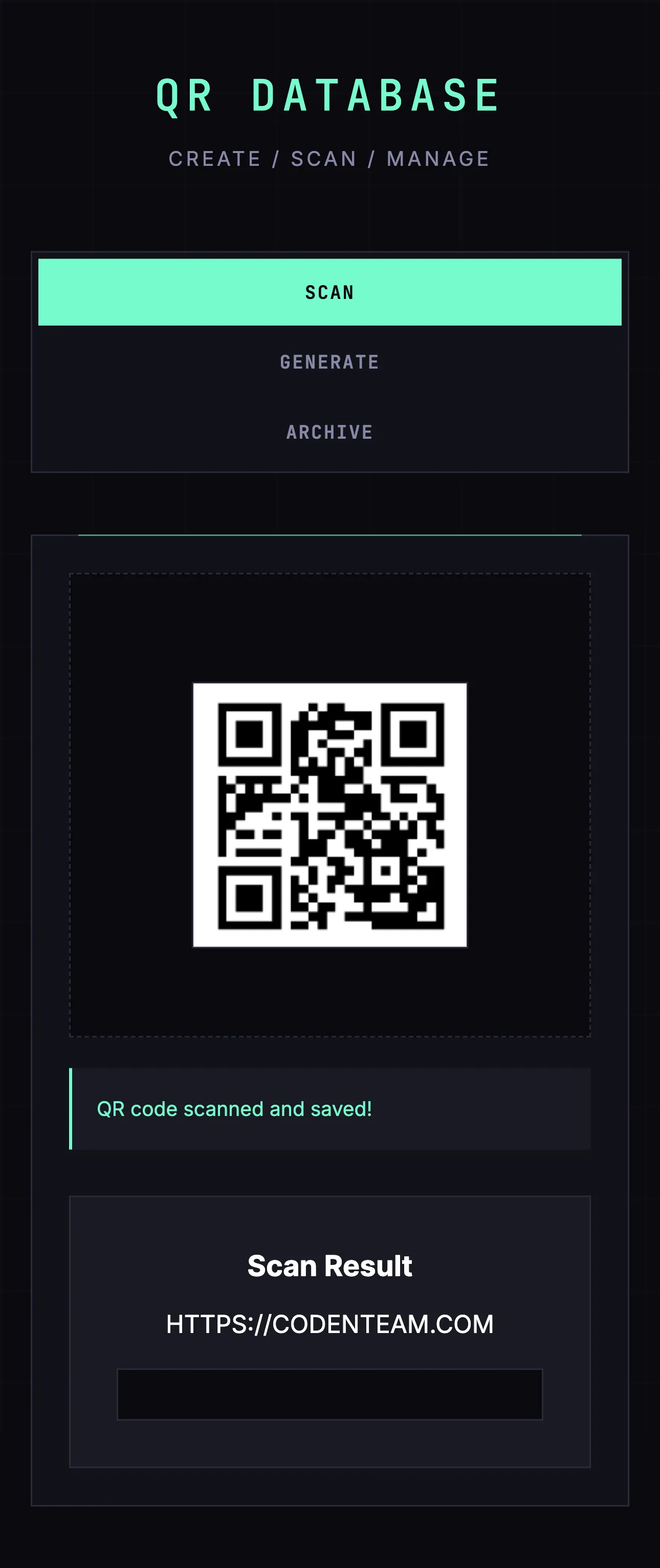
Full-stack QR code application with generation, scanning, and persistent database storage. Includes a futuristic mobile-friendly frontend for managing your QR code library.
A complete QR code management application demonstrating full-stack Habits capabilities with a polished frontend and SQLite persistence.
What It Does
- Generate QR Codes: Create QR codes from text, URLs, WiFi credentials, vCards, and more
- Scan QR Codes: Upload images to decode and extract QR code data
- Database Storage: Persist all QR codes in SQLite for future reference
- CRUD Operations: Full create, read, update, delete functionality
- Frontend: Modern UI for browsing and managing your QR code library
Why It's Included
Demonstrates how to build a complete full-stack application with Habits including:
- Custom frontend integration
- Database persistence with SQL
- Multiple workflows working together
- Tauri desktop app packaging support
App Downloads
Run Your .habit File
Run on Mobile
- [ ] Download the Cortex App from store or the downloads page
- [ ] Open the Cortex App on your device
- [ ] Tap "Open Habit" or "+" button
- [ ] Select your
.habitfile from your device storage - [ ] The habit will be loaded and ready to run
Run on Desktop
- [ ] Download the Cortex App for your platform from the downloads page
- [ ] Install and open the Cortex App
- [ ] Click "Open Habit" or drag & drop your
.habitfile - [ ] The habit will be loaded and ready to run
- [ ] Optional: Place a
.envfile in the same directory as your.habitfile to override environment variables
Run on Server
Run your .habit file as a server using the Cortex CLI:
bash
# Install and run in one command
npx @ha-bits/cortex --config ./your-app.habit- [ ] Make sure Node.js 20+ is installed
- [ ] Run the command above with your
.habitfile path - [ ] Server will start on the specified port (default: 3000)
- [ ] Access the app at
http://localhost:3000 - [ ] Optional: Place a
.envfile next to your.habitfile - it will automatically override any embedded environment variables
Run Serverless
For serverless or containerized deployments, we recommend using Docker:
bash
# Using Docker (recommended for serverless)
docker run -p 3000:3000 -v $(pwd)/your-app.habit:/app/habit.habit \
  node:20-alpine npx @ha-bits/cortex --config /app/habit.habit --host 0.0.0.0
Or create a Dockerfile:
dockerfile
FROM node:20-alpine
WORKDIR /app
COPY your-app.habit ./
COPY .env ./ # Optional: include environment variables
RUN npm install -g @ha-bits/cortex
EXPOSE 3000
CMD ["cortex", "--config", "./your-app.habit", "--host", "0.0.0.0"]- [ ] Create a Dockerfile or use the Docker run command above
- [ ] Deploy to your preferred cloud provider (AWS, GCP, Azure, etc.)
- [ ] Configure environment variables via your cloud provider's secrets management
- [ ] Set up health checks at
/habits/base/apiendpoint
Workflow Visualization
Requirements
- No external API keys required (uses local SQLite)
Key Files
yaml
version: "1.0"
name: "QR Database"
workflows:
  - id: create-qr
    path: ./create-qr.yaml
    enabled: true
  - id: scan-qr
    path: ./scan-qr.yaml
    enabled: true
  - id: list-qrs
    path: ./list-qrs.yaml
    enabled: true
  - id: get-qr
    path: ./get-qr.yaml
    enabled: true
  - id: delete-qr
    path: ./delete-qr.yaml
    enabled: true

server:
  port: 13000
  host: "0.0.0.0"
  frontend: ./frontend

logging:
  level: info
  outputs: [console]
  format: text
  colorize: true
example
# QR Database Habit - Environment Variables
# No API keys required for this habit
# All functionality runs locally

# Optional: Custom database path (defaults to /tmp/habits-sql/habits-cortex.db)
# HABITS_DB_PATH=/path/to/custom.db
Quick Start
Run using the Habits CLI wrapper, recommended if you develop local Habits
# First, download the example files
npx habits@latest cortex --config ./qr-database/stack.yaml