
Build your first habit in 1 minute (Using AI)
This guide walks you through creating your first habit using the AI Generator in Base UI. Simply describe what you want to build, and AI will generate the complete backend workflow and frontend UI for you.
AI-First Approach
The AI generator creates fully functional habits, including workflow logic, node configuration, and frontend UI, from a single text prompt. Perfect for getting started quickly or prototyping ideas!
Environment Setup Checklist
Install Node Version Manager (nvm)
- [ ] macOS/Linux: Install nvm:
curl -o- https://raw.githubusercontent.com/nvm-sh/nvm/v0.40.1/install.sh | bash - [ ] Windows: Use nvm-windows or download Node.js directly from nodejs.org
- [ ] Restart terminal or run:
source ~/.bashrc(or~/.zshrc) - [ ] Verify nvm:
nvm --version
Install Node.js 24
- [ ] Install Node.js 24:
nvm install 24 - [ ] Set as default:
nvm alias default 24 - [ ] Verify Node.js:
node --version(should show v24.x.x)
Clone the Repository for AI Generation
The AI generator requires access to reference materials (existing bits and example habits) to generate quality output. These are not included when you install Habits via npx habits@latest or npm.
Otherwise you might see similar error:
AI generation requires reference materials that are not present: nodes/bits/@ha-bits (bit modules), examples (reference habits).
You need to clone the full repository:
git clone https://github.com/codenteam/habits.git
cd habits
pnpm install
Beta Feature
AI generation is currently in Beta and is available with Intersect Cloud or Intersect Self-hosted only.
Environment Variables
The AI generator requires a few environment variables to be set when starting the Base server.
| Variable | Required | Description |
|---|---|---|
HABITS_AI_GEN | Yes | Set to true to enable the AI generation endpoints. Without this the "Generate with AI" feature is disabled. |
CLAUDE_API_KEY | Yes | Your Anthropic API key (starts with sk-ant-…). Used by the AI agent to generate workflows and UI. |
HABITS_AI_DEBUG | No | Set to true to keep the temporary staging directories on disk after the ZIP is sent. Useful for inspecting raw generated files when troubleshooting. |
When to set them
Pass the variables when you launch Base:
HABITS_AI_GEN=true \
CLAUDE_API_KEY=sk-ant-… \
npx habits@latest base
Or add them to a .env file in the server root:
HABITS_AI_GEN=true
CLAUDE_API_KEY=sk-ant-...
# Optional, keep staging files for debugging
# HABITS_AI_DEBUG=true
TIP
On Intersect Cloud and Intersect Self-hosted, these variables are configured for you automatically, you only need to set them when running Base locally.
Prerequisites
- Habits Base UI running (see Setup Base Locally)
- The environment variables above configured (at minimum
HABITS_AI_GEN=trueandCLAUDE_API_KEY)
Then run the server from the cloned repository:
HABITS_AI_GEN=true \
CLAUDE_API_KEY=sk-ant-… \
pnpm nx dev @ha-bits/base
The AI uses the nodes/bits/@ha-bits/ directory (bit modules) and showcase/ directory (reference habits) to understand how to build new habits properly. :::
Step 1: Open the Generate Modal
- Start Base UI:bash
npx habits@latest base - Open your browser to
http://localhost:3000/habits/base/ - Click the Generate with AI button ( wand icon) in the toolbar
Step 2: Describe Your Habit
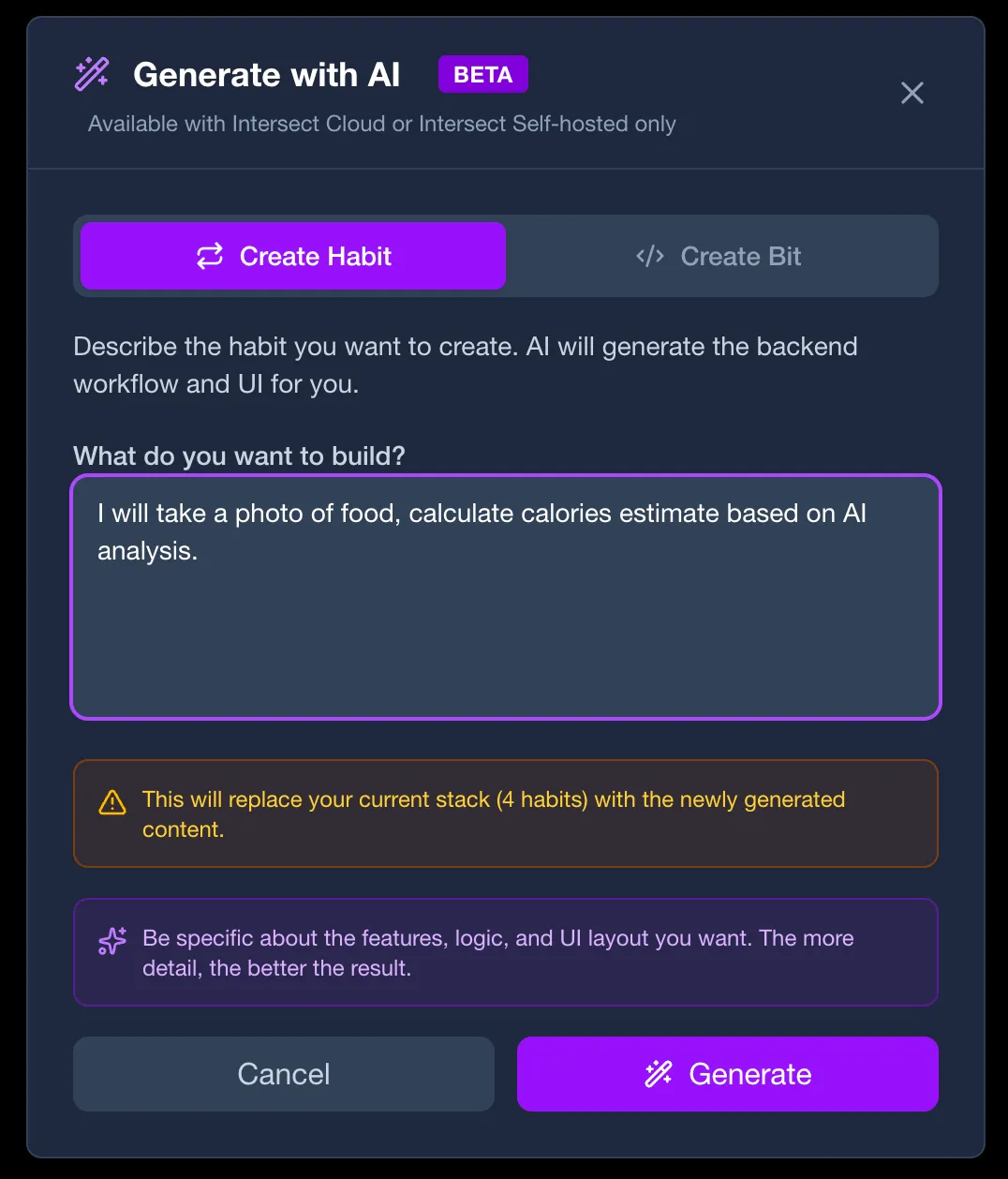
In the Generate modal, you can choose between two generation types:
- Create Habit: Generates a complete workflow with backend logic and frontend UI
- Create Bit: Generates a reusable node module (bit) for use in workflows
Select Create Habit, then describe what you want to build in the text area. Be as specific as possible about the features, logic, and UI layout you want.
Example prompts:
- "Build an AI-powered image analyzer that describes uploaded photos and stores results in a database"
- "User provides a prompt, expand it to a more profressional marketing-toned message, pass the new message to an image creator that creates a poster using AI, and another AI node that generates a website
Step 3: Watch the Progress
After clicking Generate, the AI agent will start building your habit. You'll see real-time progress updates as it works through each step:
- Analyzing your requirements
- Generating the workflow nodes and configuration
- Creating the frontend UI
- Packaging everything together
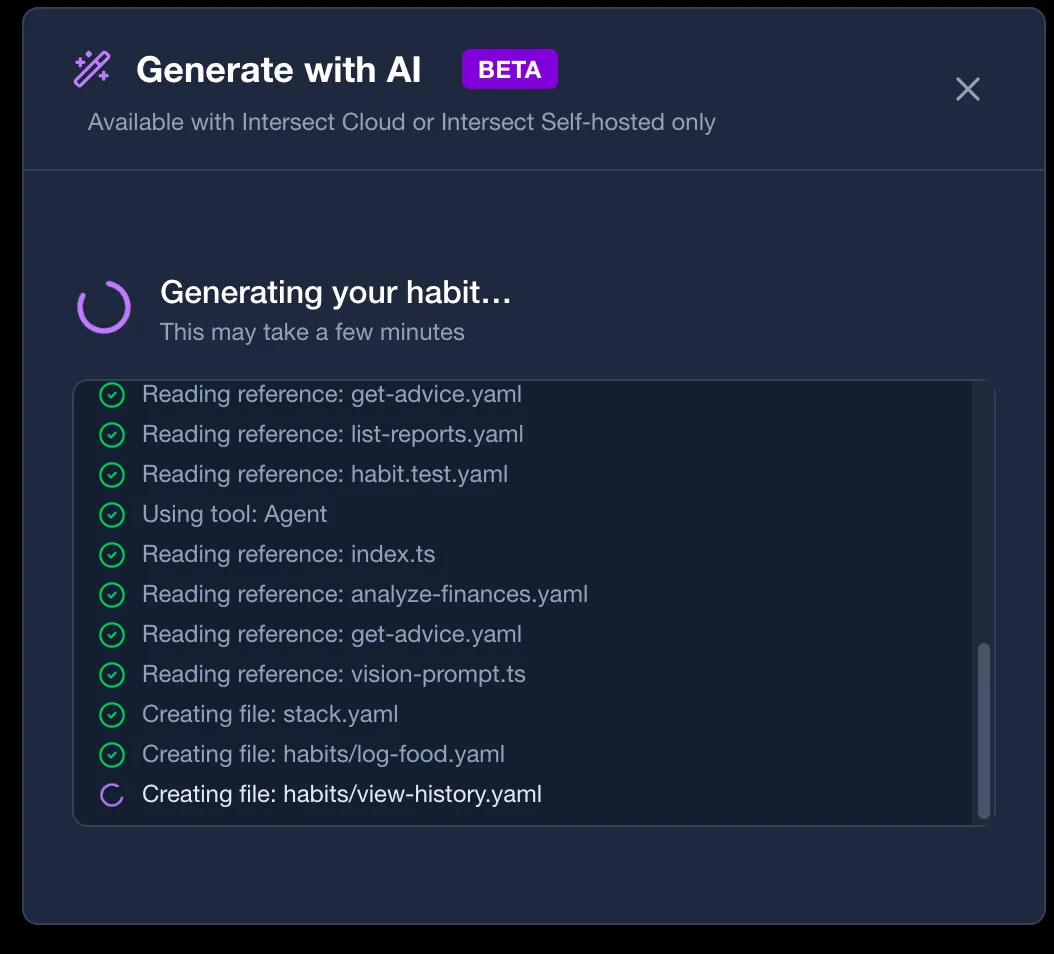
The generation typically takes 1–2 minutes depending on complexity.
Step 4: Review the Result
Once generation is complete, you'll see a success message showing:
- How many habits were created
- Whether a frontend UI was included
Click Done to close the modal. Your generated habit is now loaded in the Base editor where you can:
- Inspect the workflow: View and modify the generated nodes and connections
- Edit the frontend: Customize the generated UI in the Frontend panel
- View the code: Click the Code button to see the generated YAML
- Test it: Hit the Play button to run the habit immediately
Step 5: Test Your Habit
- In the habit editor, click the Play button
- Fill in any required input fields in the test form
- Click Run Test
- View the results in the output panel
Tips for Better Results
| Tip | Example |
|---|---|
| Be specific about features | "with search, pagination, and dark mode" |
| Mention data models | "store users with name, email, and role" |
| Describe the UI layout | "sidebar navigation with a main content area" |
| Specify integrations | "use OpenAI for text analysis and store results in the database" |
Iterate and Refine
The AI-generated habit is a starting point. You can always modify the workflow, tweak the UI, or add more nodes manually after generation. Switch to the Base UI guide or Habit-as-Code guide for manual editing techniques.
Generating a Bit (Node Module) (Beta)
You can also use the AI generator to create custom bits, reusable node modules:
- Open the Generate modal
- Switch to Create Bit mode
- Describe the bit (e.g., "A Slack notification bit that sends messages to a channel")
- Click Generate
The generated bit files will be created and ready for use in your workflows.
Troubleshooting
Generation Fails or Times Out
Ensure your Intersect Cloud or Self-hosted instance is running and accessible- Check that AI generation is enabled in your configuration
- Try simplifying your prompt and generating again
Generated Habit Doesn't Match Expectations
- Add more detail to your prompt, the more specific, the better
- Try breaking complex ideas into simpler prompts and combining them manually
- Use the generated habit as a starting point and edit it in the Base UI
No "Generate with AI" Button
AI generation requires Intersect Cloud or Intersect Self-hosted
- Make sure the required environment variables are set correctly (
HABITS_AI_GEN=trueand a validCLAUDE_API_KEY). Without these, the "Generate with AI" button will not appear. See the Environment Variables section above for details.
Habits Stack Preparation Checklist
Basic Stack Requirements
- [ ] Stack has a
namefield instack.yaml - [ ] Each habit has a unique
namefield - [ ] Each habit has at least one node
- [ ] All API keys stored in
.envfile (not in habit files) - [ ]
.envis in.gitignoreif you have a version control - [ ]
.env.exampleexists with required variable names
If using Server-Side or Full-Stack Logic
- [ ] All habits have clear
inputsdefined - [ ] All habits have clear
outputsdefined - [ ] UI points to correct backend endpoints
- [ ] CORS configured if frontend/backend on different origins
Troubleshooting: Cannot Find stack.yaml Error
- [ ] Verify
stack.yamlexists in current directory - [ ] Or provide full path:
--config /path/to/stack.yaml
Troubleshooting: Missing Environment Variable Error
- [ ] Verify
.envfile exists - [ ] Check variable names match references in habits (e.g.,
${OPENAI_API_KEY}) - [ ] Ensure
.envis in same directory asstack.yaml
Exporting for Production
Note: We are deprecating support for
capacitor,cordova, andelectron. Future releases will rely exclusively ontaurifor desktop and mobile exports. Please migrate any existing projects to usetaurifor best support and compatibility.
If exporting Server-Side or Full-Stack (Recommended: Docker)
- [ ] Stack tested locally and working
- [ ] Export via Base UI: Export → Docker
- [ ] Download
{name}-docker.zip - [ ] Unzip and run:
docker-compose up -d
If exporting Server-Side (Alternative: Single Executable)
- [ ] Stack tested locally and working
- [ ] Export via Base UI → Export tab → Binary
- [ ] Download binary for target platform
- [ ] Run executable on target machine
If exporting Desktop App (Experimental)
- [ ] Stack tested locally and working
- [ ] Backend URL configured (where app will connect)
- [ ] Choose framework:
tauri(recommended) orelectron - [ ] Choose platform:
windows,mac,linux, orall - [ ] Check build tools:
curl http://localhost:3000/habits/base/api/export/binary/supportor in UI - [ ] For Tauri: Rust, Cargo installed
- [ ] Export via Base UI → Export tab → Desktop
- [ ] If first time: Download scaffold (buildBinary: false)
- [ ] If ready for binary: Enable buildBinary: true
- [ ] Download and test on target platform
If exporting Mobile App (Experimental)
- [ ] Stack tested locally and working
- [ ] Backend URL configured (must be accessible from mobile device)
- [ ] Choose framework:
tauri(recommended) - [ ] Choose target:
ios,android, orboth - [ ] Check build tools:
curl http://localhost:3000/habits/base/api/export/binary/support- [ ] For Android: Java, Gradle, Android SDK installed
- [ ] For iOS: macOS with Xcode installed (iOS builds only work on macOS)
- [ ] Set environment variables:
- [ ]
ANDROID_HOMEorANDROID_SDK_ROOTfor Android - [ ] Export via Base UI → Export tab → Mobile
- [ ] If first time: Download scaffold (buildBinary: false)
- [ ] If ready for binary: Enable buildBinary: true
- [ ] Download APK (Android) or IPA (iOS)
- [ ] Test on real device or emulator
Troubleshooting: Desktop/Mobile Build Fails
- [ ] Check
mobileordesktopsection for missing tools - [ ] Install missing dependencies
- [ ] Try scaffold export first (buildBinary: false) to verify config
- [ ] Check logs for specific error messages
- [ ] Via API, Run:
curl http://localhost:3000/habits/base/api/export/binary/support
Troubleshooting: iOS Build Fails
- [ ] Verify you're on macOS (iOS builds require macOS)
- [ ] Verify Xcode is installed:
xcodebuild -version - [ ] Open Xcode at least once to accept license agreements
Troubleshooting: Android Build Fails
- [ ] Verify
ANDROID_HOME/ANDROID_SDK_ROOTis set - [ ] Verify Java and Gradle versions are compatible
- [ ] Check compatibility in support endpoint response
- [ ] Install Android SDK build tools if missing
Next Steps
- First Habit (Base UI), Learn the visual editor for manual habit building
- First Habit (Habit-as-Code), Build habits using YAML/JSON directly
- Examples, Browse real-world habit examples
- Variables & Expressions, Learn how to pass data between nodes